Table of Contents
Publishing, Deploying, and Running a .NET Application Using Visual Studio
To get a .NET application from your development environment to an ARM Linux device like the ComfilePi, you need to perform the following steps in order:
- Publish the application for the target device's CPU architecture and operating system.
- Deploy the resulting binaries to a target device.
- Execute the binaries on the target device.
Publishing the Application
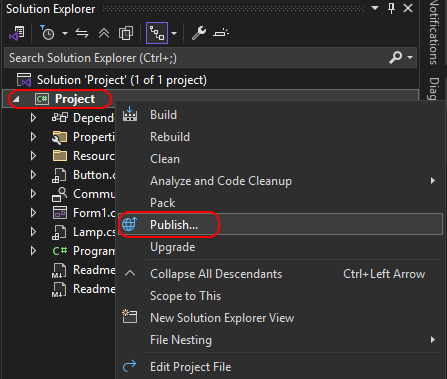
- To publish a .NET project using Visual Studio, right-click the project in Visual Studio's Solution Explorer and choose the Publish option.
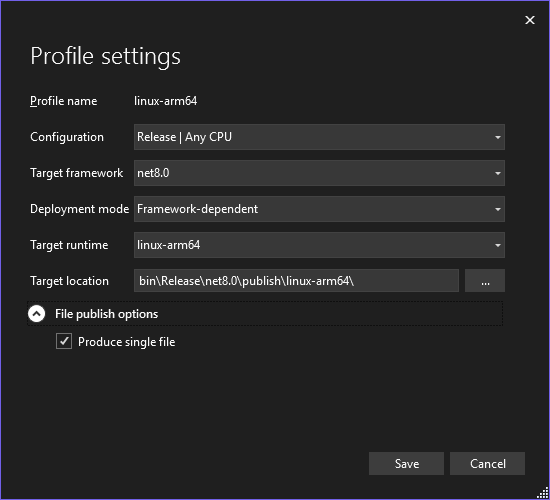
- In the Advanced Settings choose the linux-arm64 runtime. If the .NET SDK or runtime is already installed on the target deice, choose the Framework Dependent development mode.
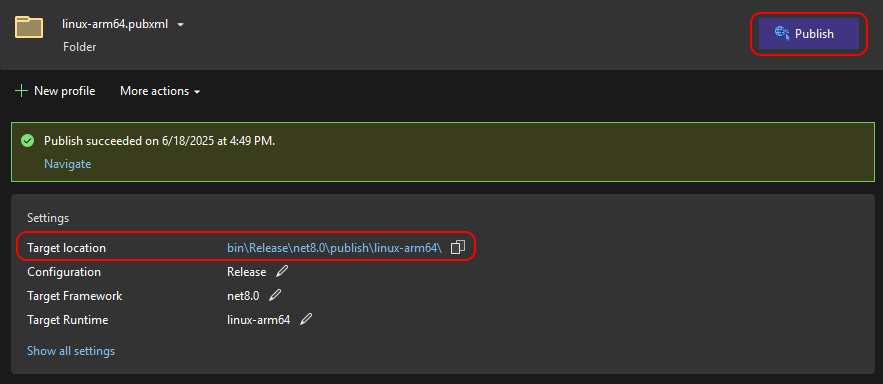
- Press the Publish button to start the publish process. If successful, open the Target location to see the resulting binaries files.


Deploying the Application
- You may need to mark your main binary file as executable using the following chmod command.
ssh {comfilepi_user}@{comfilepi_ip_address} chmod +x {comfilepi_folder}/{executable_file}
Running the Application
With the binary files successfully deployed to the target device and the main binary marked as executable, you can run the application by simply invoking the main binary executable from a terminal.
./{executable_file}
If you are invoking the application from an SSH session, and the application requires and X11 display, you must first set the DISPLAY environment variable to the local display, then run the executable file.
export DISPLAY=":0.0"
./{exectuable_file}