
Table of Contents
Python Development Environment
This section explains the development environment for using CFNET modules with Python on the Modular Pi.
It also provides guidance on setting up a remote development environment by connecting to the Modular Pi using the Visual Studio Code Remote-SSH feature on a development PC.
The following basic configuration must be prepared:
- Modular Pi (Raspberry Pi) with OS installed
- SSH access enabled or local access via monitor/keyboard connection
- Visual Studio Code and Python 3.x installed on the development PC
- Python 3.x installed on the Modular Pi
Installing Visual Studio Code / Python
Please download and install Python and Visual Studio Code suitable for your development PC platform (Windows, macOS, etc.) from the links below.
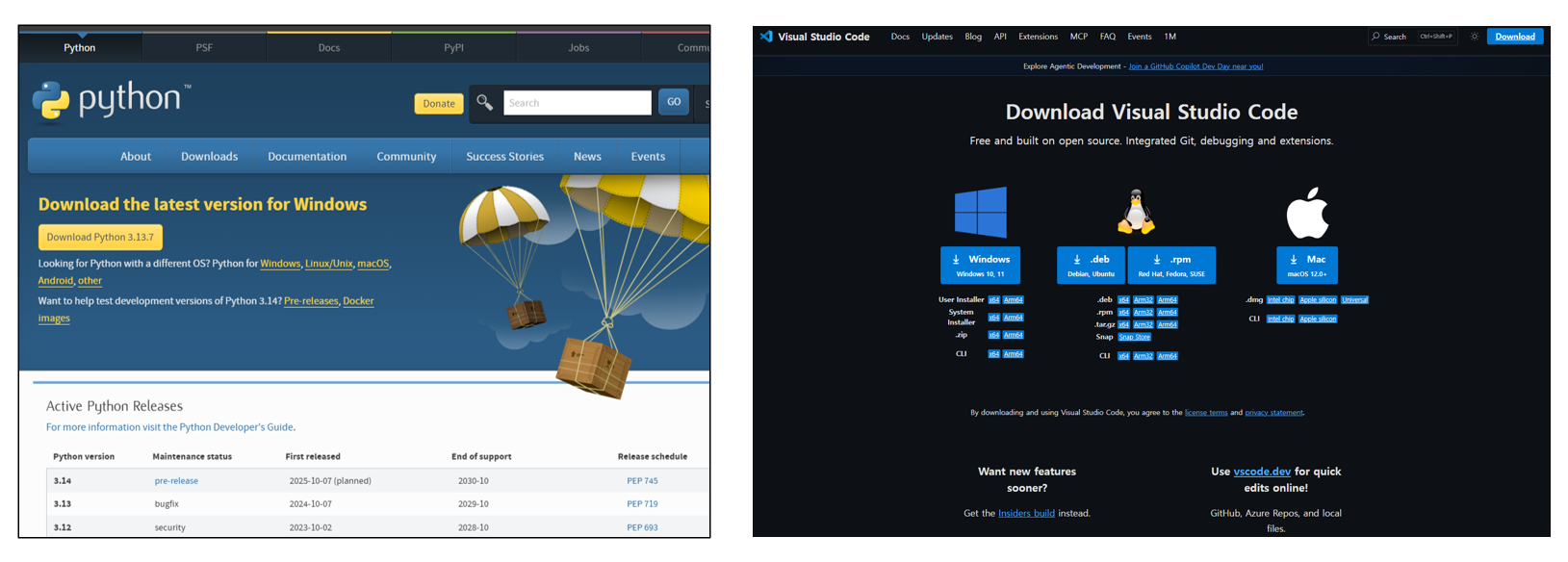
Visual Studio Code Configuration
This section explains how to write and execute programs using Visual Studio Code.
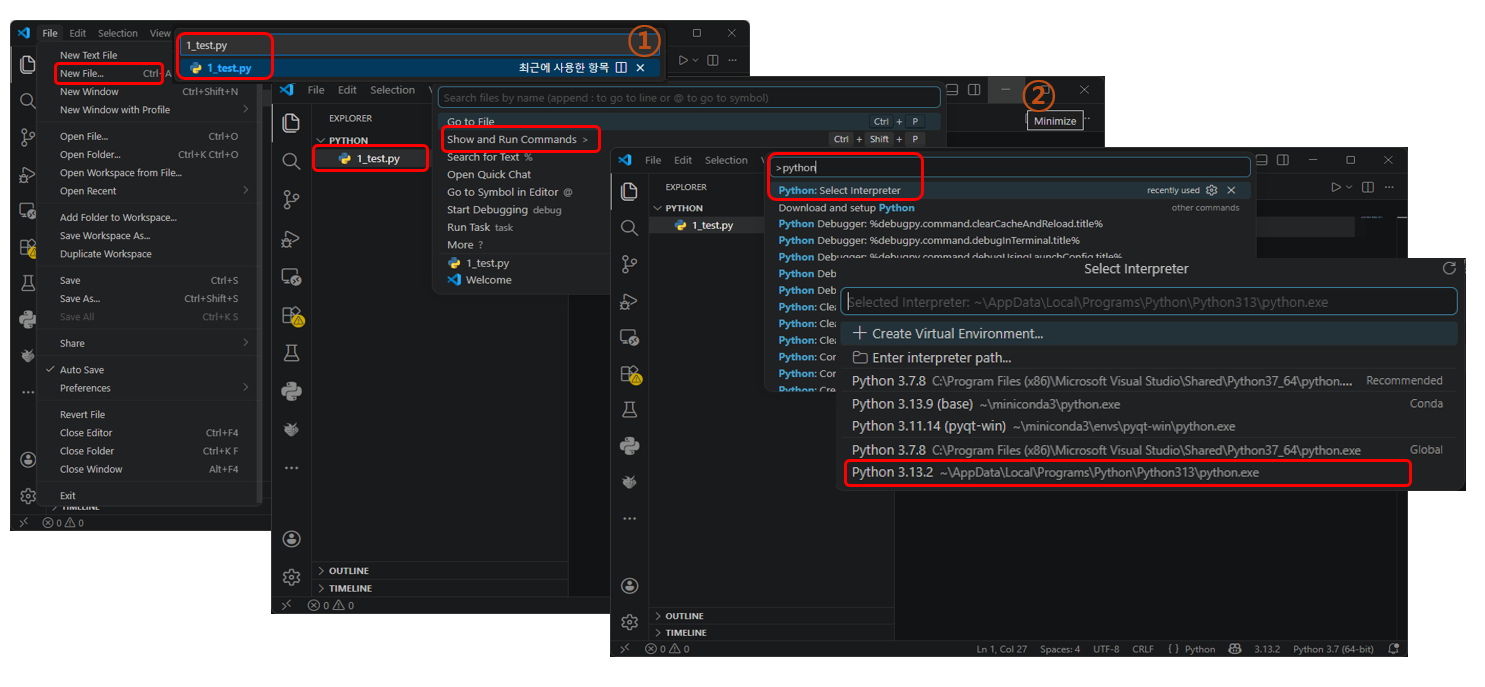
- Creating a .py file: File → New File → Create a project file (e.g., name.py).
- Selecting the Interpreter: Search bar → Show and Run Commands → Python: Select Interpreter → Choose the installed Python version.
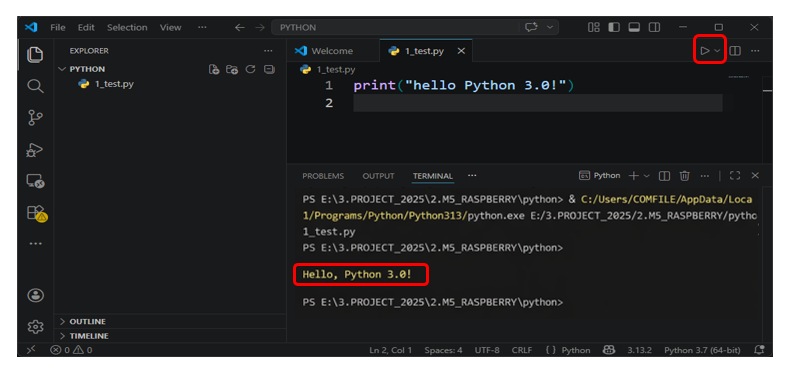
- You can verify the operation when running the Python interpreter.
Visual Studio Code Remote Setup
This explains how to connect the development PC and the Modular Pi remotely, allowing you to run Python code written in Visual Studio Code directly on the Modular Pi. The development PC and Modular Pi must be connected to the same network.
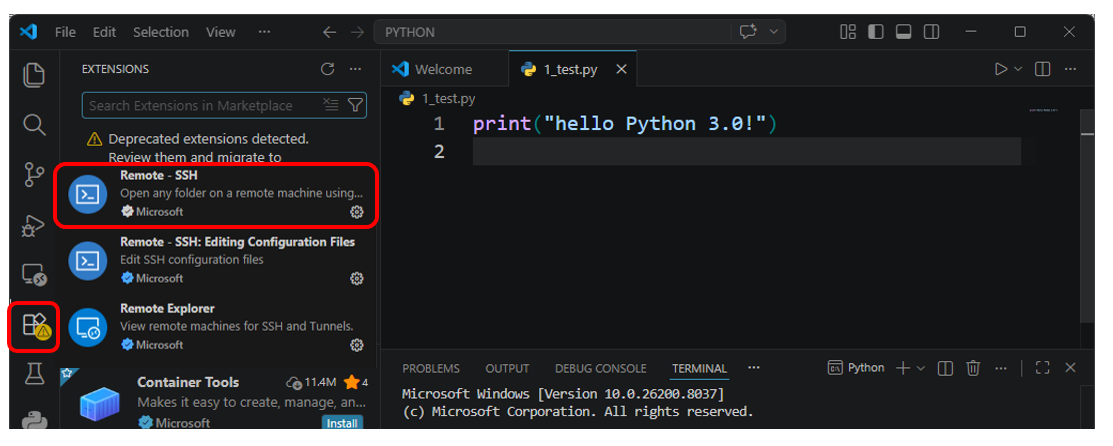
1. Installing Remote-SSH Extension
Install the Remote-SSH extension from the Visual Studio Code Extensions marketplace.
2. Registering the Modular Pi Host Network
To connect to the Modular Pi, you must register the Remote-SSH network in Visual Studio Code. Proceed with the registration as follows:
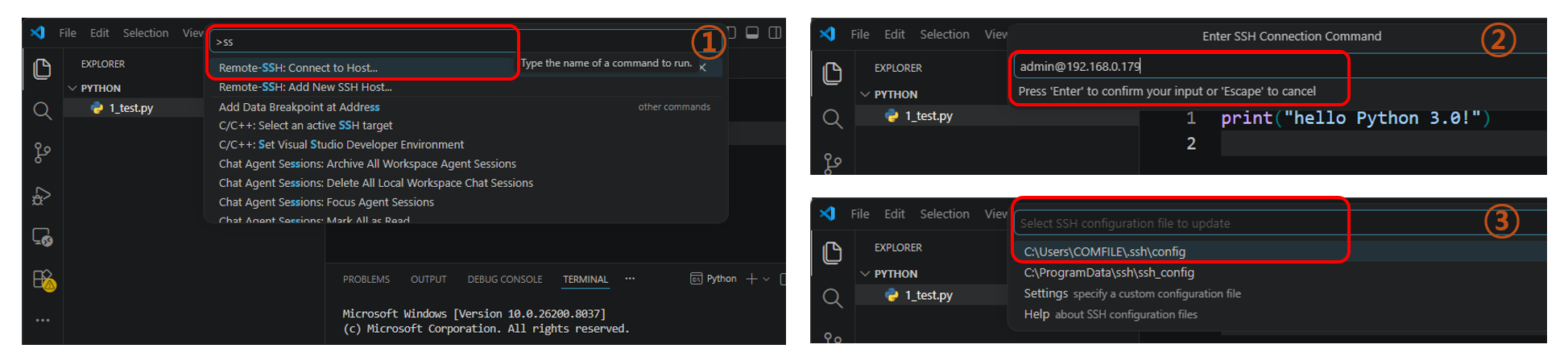
- Press F1 to open the Command Palette and type Remote-SSH: Add New SSH Host.
- Enter the account and IP address of the Modular Pi to connect via SSH (e.g., admin@192.168.xxx.xxx).
- Select the SSH configuration file (config) to save (typically C:\Users\<Username>\.ssh\config).
☞ If the Modular Pi uses password authentication for SSH, simply enter the password upon connection. The default password is raspberry.
3. Connecting to and Running Modular Pi via Remote-SSH
Once the Modular Pi host (pi) is successfully registered, you can connect remotely in Visual Studio Code as follows:
- 1. Press F1, search for, and select Remote-SSH: Connect to Host….
- 2. Select the registered Modular Pi network IP from the list.

You can now access the /home/pi/ directory on the Modular Pi, create files, and write/run Python programs.
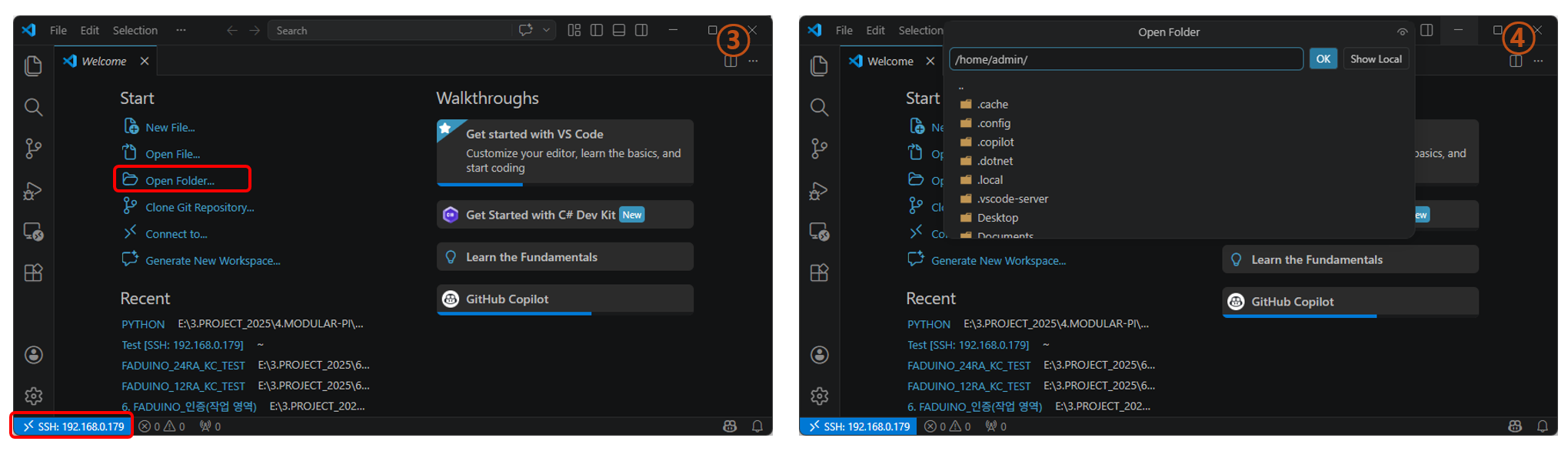
- 3. Upon successful connection, a new Visual Studio Code window for the Modular Pi host will open, and you can verify the SSH connection status.
- 4. Click 'Open Folder' → Open the /home/pi/ directory.
- 5. After adding a user folder, please create a Python program with a .py extension. Once you run the Python interpreter, you will see the program in that folder executing correctly.
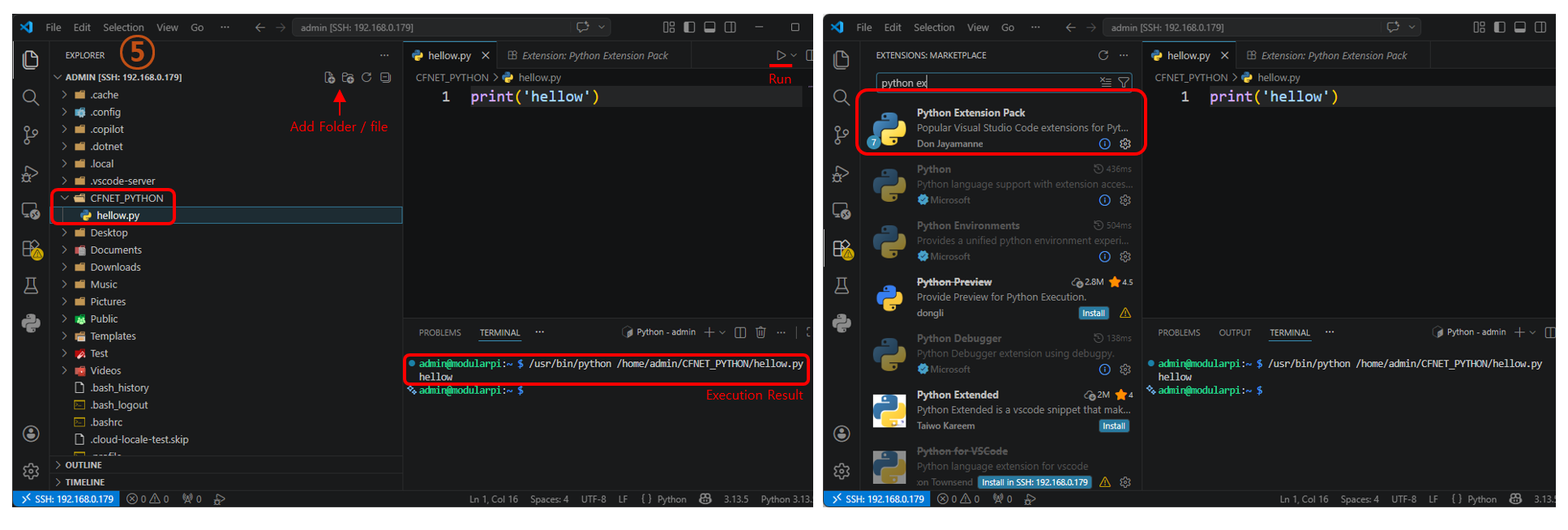
☞ If the run button is not visible, please install the Python Extension Pack from the Extensions marketplace.