
Table of Contents
Configure a Program to Auto-Start
Wayland and LabWC (e.g. Bookworm)
The Bookworm OS utilizes Wayland and the LabWC Wayland compositor. Configuring programs to auto-start in that environment can be done by editing the $HOME/.config/labwc/autostart file.
For the ComfilePi Bookworm OS, the $HOME directory for the default user has been moved to the datafs partition, so any changes to any files in the $HOME directory will be retained even when the read-only file system overlay is enabled.
Configure an X Program to Auto-Start (e.g. Mono)
For the X windows interface on the ComfilePi, you can register a program to autostart by adding a command to start it in the /etc/xdg/lxsession/LXDE-pi/autostart file.
However, if a user has the file .config/lxsession/LXDE-pi/autostart in their home directory, the file in the /etc directory will be ignored and the command will need to be added to the user's autostart file instead.
For example, if you wanted to start a Mono program at /home/pi/HelloWorld.exe you would add the the line @mono /home/pi/HelloWorld.exe to one of the autostart files mentioned above.
Configure a non-X Program to Auto-Start (e.g. Qt EGLFS)
Most embedded applications do not run in a desktop environment. This procedure will describe how to configure the ComfilePi to boot to a console instead of a desktop environment, and auto-start a program as a service.
Configure the ComfilePi to Boot to a Console
- From a console/terminal, execute the command
sudo raspi-config. - Select 3 Boot Options –> B1 Desktop / CLI –> B1 Console.
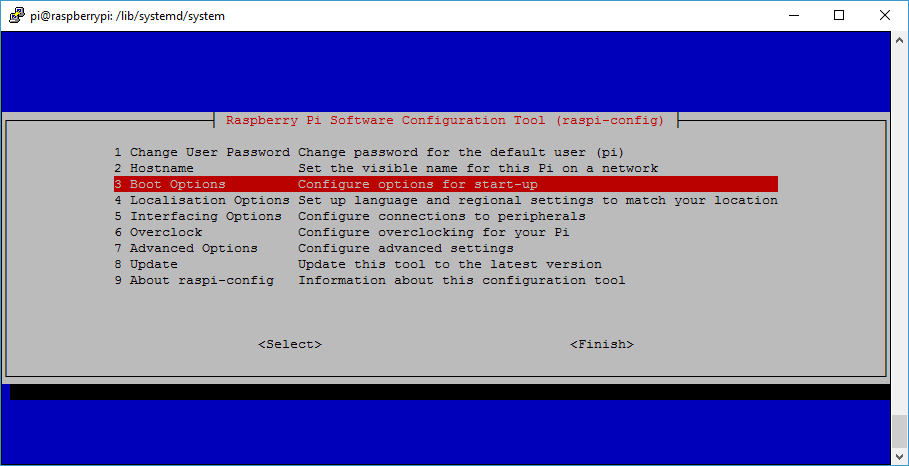
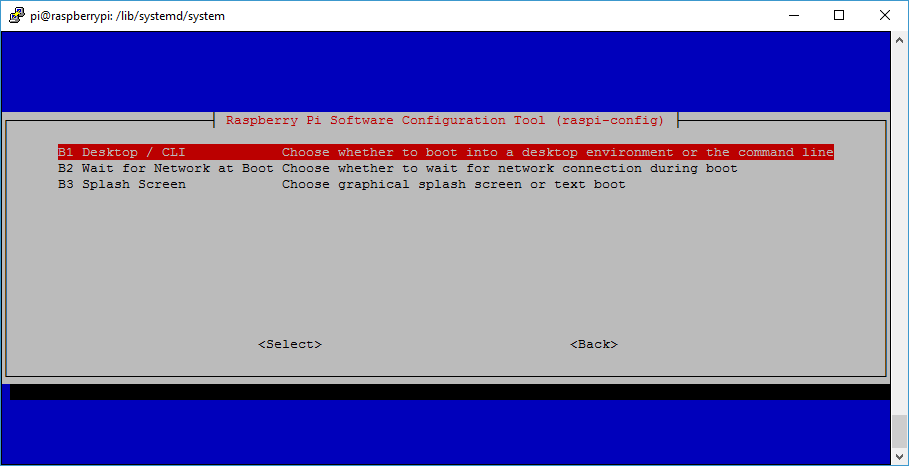
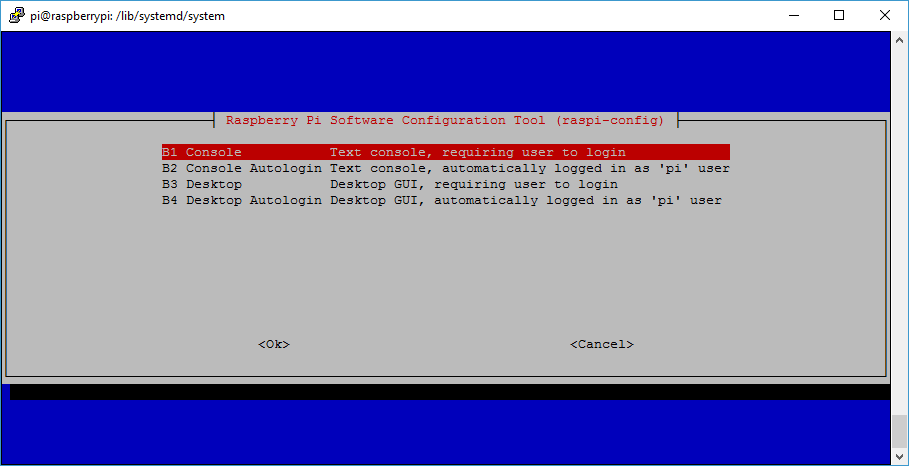
- Then select Finish to exit, and “Yes” to reboot.
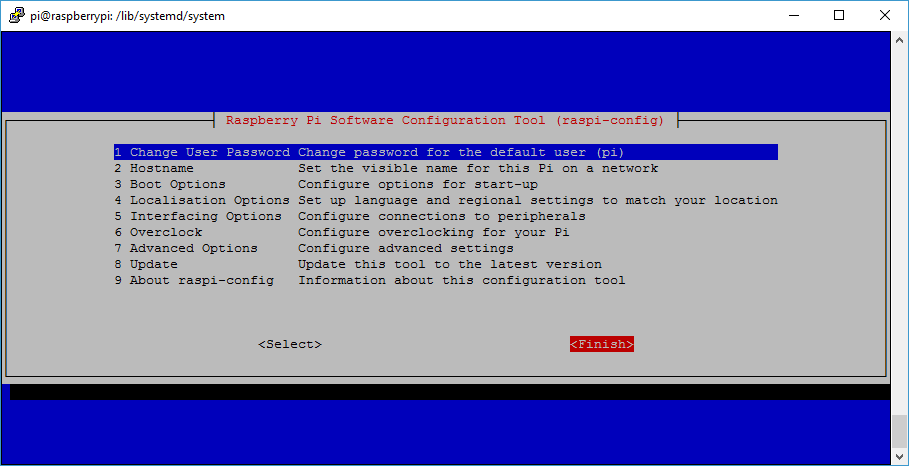
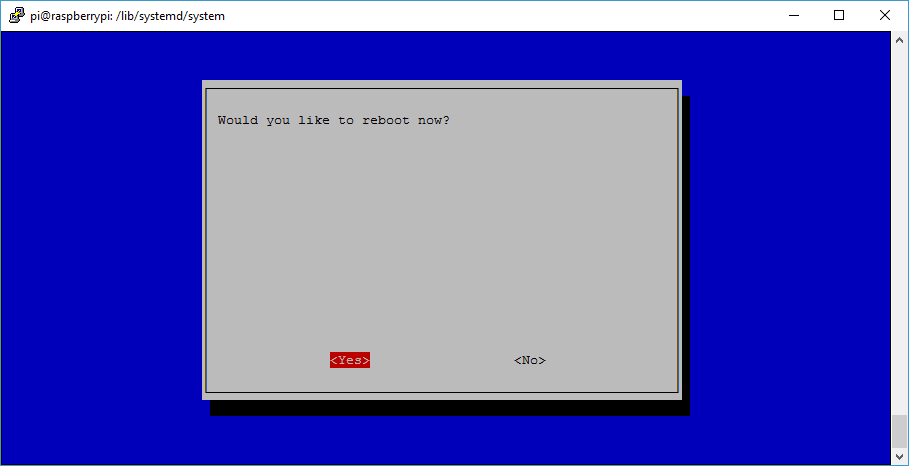
After rebooting, instead of booting to the desktop environment, it will boot to a console waiting for user to login.
Register a Program to Auto-Start
- Create a {program_name}.service file in your favorite text editor, and copy it to
/etc/systemd/system/. For this demonstration we will create a file named dashboard.service that will run the dashboard example program at/opt/Qt5.8/examples/quickcontrols/extras/dashboard. - Edit the file with the following contents
[Unit]
Description=Dashboard example program

[Service]
ExecStart=/opt/Qt5.8/examples/quickcontrols/extras/dashboard/dashboard
Restart=always

[Install]
WantedBy=multi-user.target
*
Descriptionis just a textual description of the service.
*ExecStartis the path to the executable to run.
*Restart=alwayswill cause the program to respawn if/when its exited.
*WantedByestablishes where in the execution pipeline to this program should execute.
* See the systemd official documentation for more information. - Register the service by executing
sudo systemctl enable dashboard.service, and the next time the ComfilePi boots, it will run the dashboard program automatically. Executesudo systemctl start dashboard.serviceto run the service immediately.
Reference
sudo systemctl enable dashboard.service- Register the service. The program will auto-start on the next boot.sudo systemctl disable dashboard.service- Unregister the service. The program will no longer auto-start.sudo systemctl start dashboard.service- Start the program immediately.sudo systemctl stop dashboard.service- Stop the program immediately. It will not automatically respawn after executing this command even with theRestart=alwaysoption.
Environment Variables for Qt EGLFS Programs
Qt programs running with the EGLFS backend need to declare a few environment variables to work properly. They are currently set in /etc/profile.d/qt5.8-environment.sh, so if running the program under a user's profile, nothing needs to be done. However, systemd will not be running under a normal user's profile, so the environment variables must be set explicitly in the .service file as illustrated below.
[Service]
Environment="QT_QPA_EGLFS_HIDECURSOR=1"
Environment="QT_QPA_EGLFS_DISABLE_INPUT=1"
Environment="QT_QPA_GENERIC_PLUGINS=evdevmouse:abs"
Environment="QT_QPA_EGLFS_PHYSICAL_WIDTH=154"
Environment="QT_QPA_EGLFS_PHYSICAL_HEIGHT=86"
Environment="QT_QPA_EGLFS_WIDTH=800"
Environment="QT_QPA_EGLFS_HEIGHT=480"
ExecStart=/opt/Qt5.8/examples/quickcontrols/extras/dashboard/dashboard